
Running a Shopify store means balancing customer experience with profitability. One challenge many merchants face is processing small orders that barely cover costs—or worse, result in losses after factoring in shipping, handling, and payment processing fees.
Setting a minimum order quantity (MOQ) or minimum order value can protect your margins while encouraging customers to purchase more. But here’s the catch: Shopify doesn’t offer native MOQ functionality.
In this guide, you’ll learn why MOQ limits matter for your store, when to use them, and exactly how to implement them in Shopify.
Table of contents
- What is Minimum Order Quantity (MOQ)?
- Why Shopify stores need MOQ limits
- Types of MOQ limits you can set
- How to set up MOQ in Shopify – The Yuko order limit
- Minimum order quantity limits best practices for Shopify stores
- Common MOQ scenarios & solutions
- Advanced minimum order quantity limits strategies
- What to avoid when setting minimum order quantity limits
- Ready to set up MOQ limits in your shopify store?
- Frequently Asked Questions
What is Minimum Order Quantity (MOQ)?
Minimum order quantity is the smallest number of products (or minimum dollar amount) a customer must purchase in a single order. Businesses use MOQs to ensure each transaction is profitable after covering fixed costs like:
- Shipping and handling
- Payment processing fees
- Packaging materials
- Labor time for order fulfillment
- Platform transaction fees
For example, if your average shipping cost is $8 and you sell items for $12 each, selling just one unit leaves you with minimal profit. Setting an MOQ of 3 units ($36 total) makes the order worthwhile.
Why Shopify stores need MOQ limits
1. Protect your profit margins
Small orders often eat into profits. When you factor in shipping costs, payment processing fees (typically 2.9% + 30¢ per transaction), and fulfillment time, single-item orders may actually lose money.
MOQs ensure every order contributes positively to your bottom line.
2. Reduce fulfillment costs
Every order requires time for picking, packing, labeling, and shipping—regardless of size. By setting minimum quantities, you reduce the number of low-value orders and focus on more profitable transactions.
This is especially important for businesses operating on tight margins or those with high fulfillment costs.
3. Match supplier requirements
If your suppliers impose MOQs on you (as discussed in the inventory management article), you may need to pass similar requirements to your customers. This ensures you’re not stuck with excess inventory from bulk purchases while only selling single units.
4. Qualify serious buyers for B2B/Wholesale
Wholesale and B2B customers expect different terms than retail shoppers. Setting MOQs helps filter out casual browsers and ensures you’re working with legitimate business buyers who understand bulk purchasing.
5. Encourage larger cart values
When implemented thoughtfully, MOQs can actually improve customer experience by bundling products or encouraging customers to “complete the set” rather than buying single items.
Ready to protect your margins and grow your average order value?
Types of MOQ limits you can set
Before implementing MOQ limits, decide which type makes sense for your business:
- Minimum order quantity (units)
Require customers to purchase at least X units of a product. Example: “Minimum 6 bottles per order”
- Minimum order value (dollar amount)
Set a minimum cart total that customers must reach. Example: “$50 minimum order value”
- Product-specific minimums
Apply different MOQ rules to different products. Example: Custom t-shirts require 12-piece minimum, but accessories have no minimum
- Collection-based minimums
Set MOQ rules for entire product collections. Example: All wholesale items require 10+ units
- Customer group minimums
Create different rules for wholesale vs. retail customers using customer tags. Example: Wholesale customers must order $500 minimum; retail customers have no minimum
How to set up MOQ in Shopify – The Yuko order limit
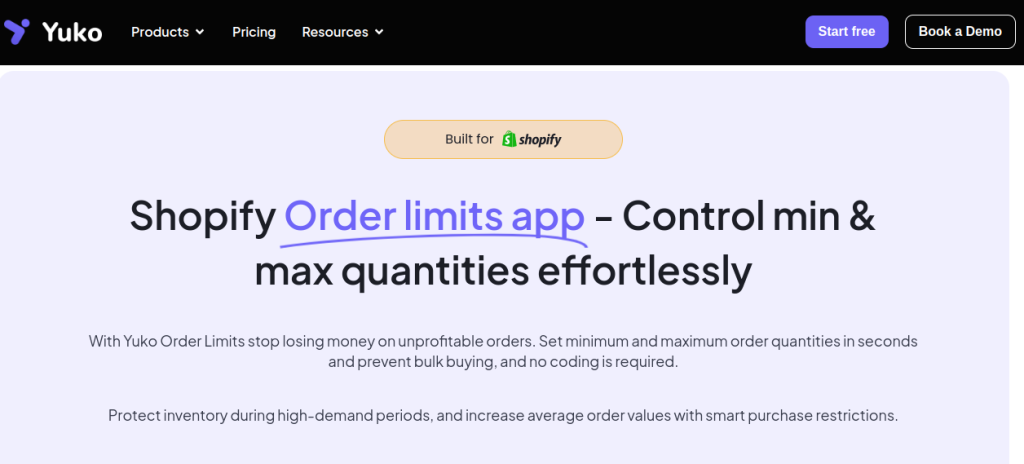
While Shopify doesn’t offer native MOQ functionality, Yuko Order Limits makes it simple:
Step 1: Install Yuko order limits
- Free Shopify app available in the Shopify App Store
- No coding required
- Works with all Shopify themes
- Compatible with Shopify POS for in-store limits
Installation:
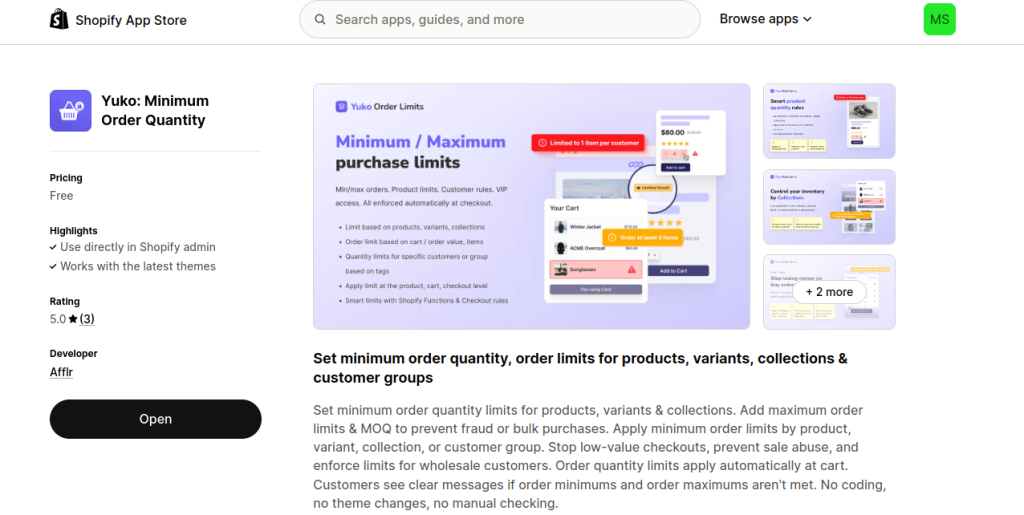
- Visit the Shopify App Store
- Search for “Yuko Order Limits”
- Click “Add app”
- Authorize the app for your store
- You will find Yuko order limits in the left most
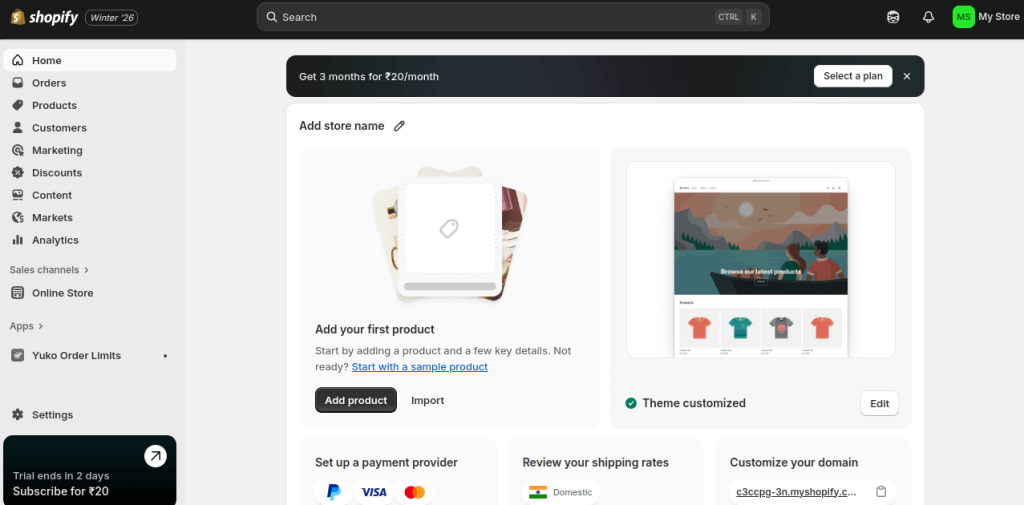
Step 2: Configure your rules
Once installed, you can create flexible MOQ rules:
Set minimum quantities per product:
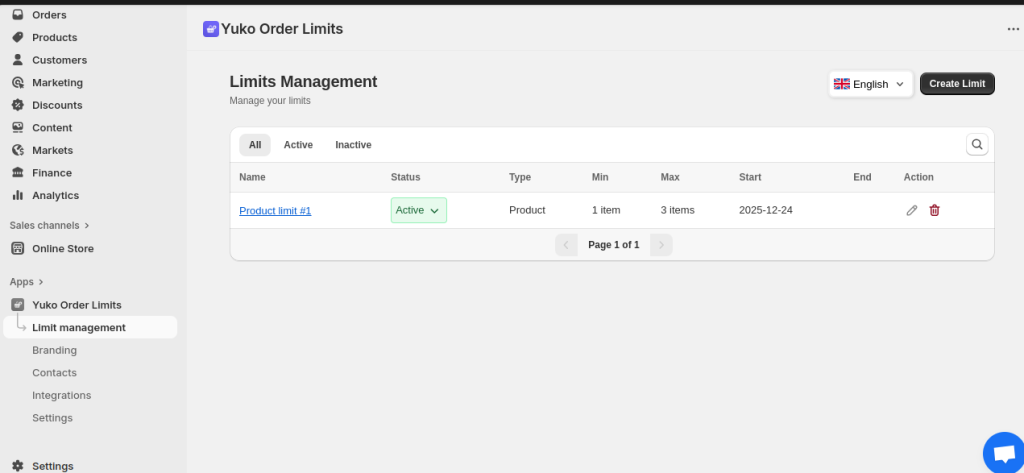
- Navigate to products in your store
- Select individual products
- Set minimum quantity (e.g., “Must order at least 5 units”)
- Set maximum quantity if needed (prevent bulk buying abuse)
In different ways you can enforce order limits:
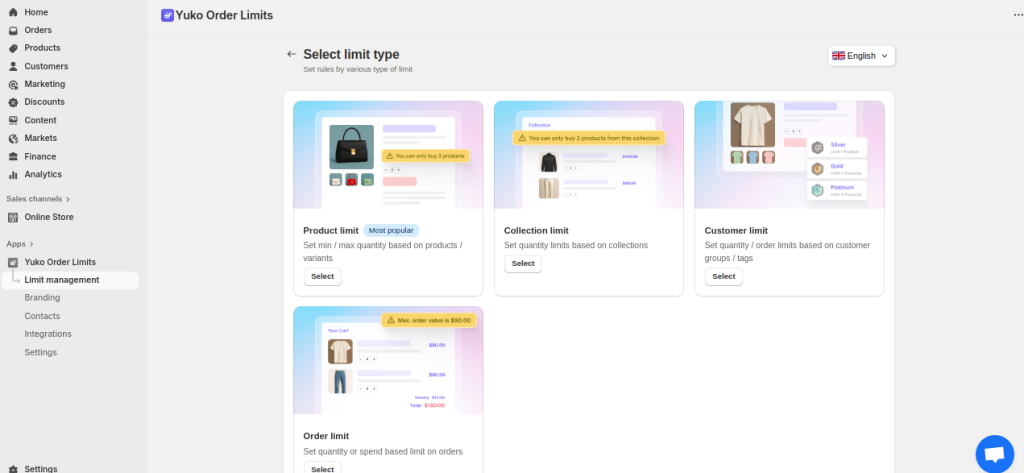
Set minimum cart values:
- Go to Cart Rules
- Set minimum order total (e.g., “$75 minimum”)
- Optionally exclude certain products or collections
Create rules by collection or product type:
- Apply MOQ to entire collections at once
- Perfect for wholesale vs. retail separation
- Set different rules for different product categories
Set different limits for wholesale customers:
- Use customer tags (e.g., “wholesale”, “B2B”)
- Create separate rule sets for each customer group
- Automatically apply appropriate limits at checkout
Step 3: Customize messages
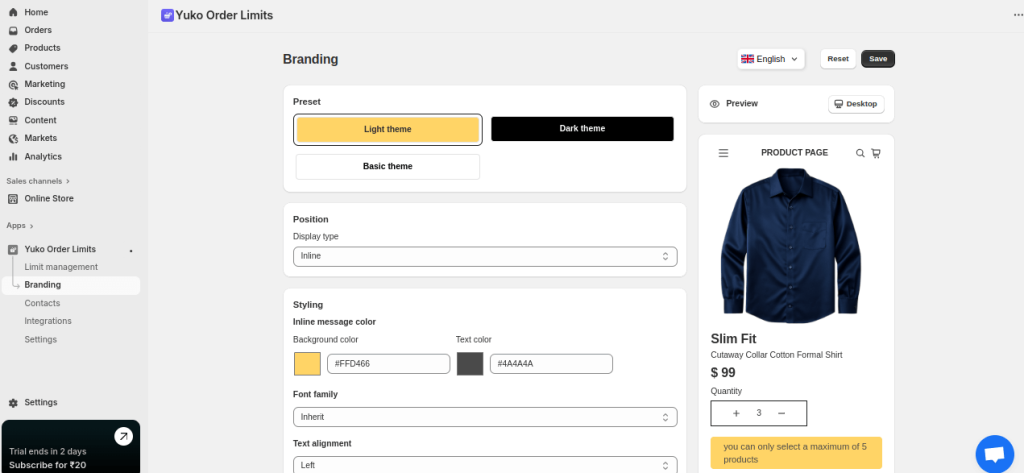
Make MOQ requirements clear and helpful for customers:
Write custom error messages when MOQ not met:
- Default: “Minimum order quantity is 10 units”
- Better: “We offer bulk pricing! Please add at least 10 units to proceed with your order.”
Display MOQ requirements on product pages:
- Show badges or banners: “10-piece minimum order”
- Add text below the add-to-cart button
- Include MOQ in product descriptions
Show progress bars:
- Visual indicator: “$25 more to reach minimum order”
- Encourages customers to add more items
- Reduces cart abandonment by setting clear expectations
Step 4: Test & launch
Before going live with MOQ limits:
Preview how limits appear to customers:
- Create a test order as a customer
- Check mobile and desktop views
- Verify messages display correctly
Test checkout flow:
- Attempt to checkout below MOQ (should be blocked)
- Verify error messages are clear
- Test with different customer tags (wholesale vs. retail)
Monitor analytics:
- Track cart abandonment rates
- Monitor average order value changes
- Measure impact on conversion rates
- Adjust MOQ thresholds based on data
Minimum order quantity limits best practices for Shopify stores
1. Be Transparent
Display your MOQ clearly on:
- Product pages (in description or near add-to-cart)
- Collection pages
- Cart page
- Homepage (if applicable)
- FAQ section
Customers appreciate knowing requirements upfront rather than discovering them at checkout.
2. Explain the Why
Don’t just state the rule explain the benefit:
- ❌ “Minimum order: $50”
- ✅ “Our $50 minimum allows us to offer free shipping and competitive pricing on all orders!”
When customers understand the reasoning, they’re more likely to comply.
3. Offer Alternatives
Help customers meet minimums easily:
- Product bundles: Pre-packaged sets that meet MOQ
- Recommended add-ons: “Add $12 more to reach minimum”
- Mix-and-match options: “Choose any 6 items from this collection”
- Sample packs: Curated selections at minimum quantity
4. Use Tiered Pricing
Incentivize purchases beyond your MOQ:
- 6-11 units: $10 each
- 12-23 units: $9 each
- 24+ units: $8 each
This encourages customers to buy more while ensuring you meet profitability thresholds.
5. Monitor Impact
Track these metrics after implementing MOQ:
- Cart abandonment rate: Did it increase significantly?
- Average order value (AOV): Hopefully this increases
- Conversion rate: Watch for major drops
- Customer feedback: Are shoppers confused or frustrated?
If MOQ negatively impacts sales, consider adjusting your minimums or improving messaging.
6. Segment Your Customers
Not all customers should face the same MOQ:
- Retail customers: Lower or no MOQ
- Wholesale buyers: Higher MOQ with volume discounts
- VIP customers: Waived MOQ as a loyalty perk
- First-time buyers: Reduced MOQ to encourage trial
Use Yuko’s customer tag feature to create these segments.
Common MOQ scenarios & solutions
Scenario 1: Wholesale store needs different MOQs for retail vs. wholesale
Challenge: You sell to both individual consumers and business buyers. Retail customers want single units, but wholesale orders should be larger.
Yuko Solution:
- Tag wholesale customers with “wholesale” or “B2B”
- Create two rule sets:
- Retail (no tag): No MOQ or low MOQ ($25)
- Wholesale (tagged): Higher MOQ ($500 or 50 units)
- Rules automatically apply based on logged-in customer
Scenario 2: Custom products require minimum orders
Challenge: You offer personalized t-shirts. Screen printing setups make small orders unprofitable.
Yuko Solution:
- Create a “Custom Products” collection
- Set collection-wide MOQ: 12 units minimum
- Display clearly: “Custom orders require 12-piece minimum due to printing setup costs”
- Offer pre-designed items without MOQ for customers wanting smaller quantities
Scenario 3: Free shipping threshold + MOQ
Challenge: You want to offer free shipping at $75 but also need a $50 MOQ.
Yuko Solution:
- Set minimum cart value: $50
- Add shipping threshold message: “Add $X more for free shipping!”
- This creates two conversion points:
- First goal: Reach $50 minimum
- Stretch goal: Reach $75 for free shipping
- Use progress bars for both thresholds
Scenario 4: Seasonal products with expiration
Challenge: You sell seasonal items (holiday decorations, perishable goods) that need to move quickly.
Yuko Solution:
- Set higher MOQs during peak season to maximize profit
- Lower or remove MOQs near end of season to clear inventory
- Update rules in Yuko as seasons change (takes 30 seconds)
- Communicate clearly: “End of season—no minimum orders!”
Scenario 5: New product launch
Challenge: Testing demand for a new product without committing to large supplier MOQs.
Yuko Solution:
- Set initial MOQ based on supplier requirements
- Use affiliate marketing (Yuko Affiliate Marketing) to drive pre-orders
- Once demand is validated, place supplier order
- Adjust customer-facing MOQ based on reorder patterns
Advanced minimum order quantity limits strategies
Geographic MOQ variations
If shipping costs vary dramatically by region:
- Higher MOQ for international orders
- Lower MOQ for local/regional customers
- Use shipping zones to inform MOQ policy
Note: This requires custom development or third-party apps beyond basic MOQ limits.
Combine MOQ with quantity breaks
Encourage larger orders by showing savings:
“Buy 10 for $15 each = $150 total Buy 20 for $13 each = $260 total (Save $40!) Buy 50 for $11 each = $550 total (Save $200!)”
Time-limited MOQ reductions
Create urgency during slow periods:
- “Flash Sale: No minimum order this weekend only!”
- “Holiday Special: $25 minimum (regular $50)”
- Temporary promotions to boost volume
What to avoid when setting minimum order quantity limits
Don’t hide MOQ requirements
Customers discovering MOQ at checkout is frustrating and leads to abandonment. Always display prominently.
Don’t set arbitrary minimums
Base your MOQ on actual costs and profitability calculations, not guesswork. If $50 feels right but your data shows $35 is profitable, go with $35.
Don’t ignore customer feedback
If multiple customers complain about MOQ, listen. You might need to:
- Lower the threshold
- Improve messaging
- Offer more bundle options
- Create exceptions for certain circumstances
Don’t apply MOQ to All products blindly
Consider which products truly need MOQ:
- High-value items may not need MOQ
- Loss leaders can have no minimum
- Custom/bulk items definitely need MOQ
Measuring MOQ success
After implementing MOQ limits, track these KPIs:
Immediate metrics (Week 1-4):
- Cart abandonment rate changes
- Average order value increase
- Customer support inquiries about MOQ
- Conversion rate impact
Long-term metrics (Month 2+):
- Total revenue trends
- Profitability per order
- Customer lifetime value
- Repeat purchase rates
Success indicators:
- AOV increased by 20%+
- Cart abandonment stayed below 70%
- Fewer unprofitable small orders
- Positive or neutral customer sentiment
Ready to set up MOQ limits in your shopify store?
Minimum order quantities protect your profit margins, reduce fulfillment costs, and encourage customers to purchase more. While Shopify doesn’t include native MOQ functionality, Yuko Order Limits makes implementation simple, flexible, and free.
Get started in 3 steps:
- Install Yuko Order Limits from the Shopify App Store (free)
- Configure your rules based on your profitability thresholds
- Monitor and optimize using built-in analytics
Whether you’re running a wholesale operation, selling custom products, or simply need to ensure every order is profitable, MOQ limits give you the control you need.
Frequently Asked Questions
You may see a small initial dip (5-15%) in conversion rate, but this is usually offset by a significant increase in average order value—often 30-50% or more. The result is typically higher overall revenue with fewer orders to fulfill.
To minimize negative impact, communicate your MOQ clearly on product pages (not just at checkout), explain why it exists, and offer bundles that meet the minimum automatically. Most customers adjust within 30-60 days and the long-term benefits to your profitability are worth the short-term adjustment period.
Yes! Yuko Order Limits lets you create customized rules for different scenarios:
1. Product-specific: Set unique minimums for individual products (e.g., custom shirts need 12 units, regular items have no minimum)
2. Collection-based: Apply MOQ to entire collections (e.g., all wholesale items require $500 minimum)
3. Customer groups: Use tags to create different rules (e.g., wholesale customers need $500 minimum, retail customers need $25)
4. Variants: Set different minimums based on size, color, or customization level
Follow this simple formula:
Total fixed costs per order ÷ Profit per unit = Minimum units neededFor dollar minimums: Multiply your minimum units by the average product price, or calculate total costs and add your desired profit margin (typically 20-30%). Start conservative and adjust based on customer response and sales data after 30-60 days.
You have several options:
1. Direct them to customer support for manual review,you can make exceptions for special circumstances
2. Offer a premium single-unit option at a higher price point that covers your costs
3. Create sample packs priced to be profitable even at small quantities
4. Waive MOQ for VIP/loyal customers using customer tags
5. Add a small order surcharge (e.g., “$10 small order fee for purchases under $50”)
Absolutely. Use Shopify’s customer tags to create exemptions:
1. Tag your VIP customers (e.g., “VIP”, “influencer”, “loyal-customer”)
2. In Yuko Order Limits, create a rule: “Customers with VIP tag have no minimum”
3. All other customers see your standard MOQ
Yes! Yuko Order Limits makes it easy to adjust MOQ for limited-time promotions:
For flash sales: Turn off MOQ rules temporarily (takes 10 seconds)
For seasonal promotions: Create time-limited rules (e.g., “No minimum during Black Friday weekend”)
For slow-moving inventory: Reduce MOQ on specific collections to clear stock

